Troubleshooting
How to Reset a Roborock, by Series
Which reset to use, what each one erases, and the steps Roborock's own manuals give for the Q and S series.
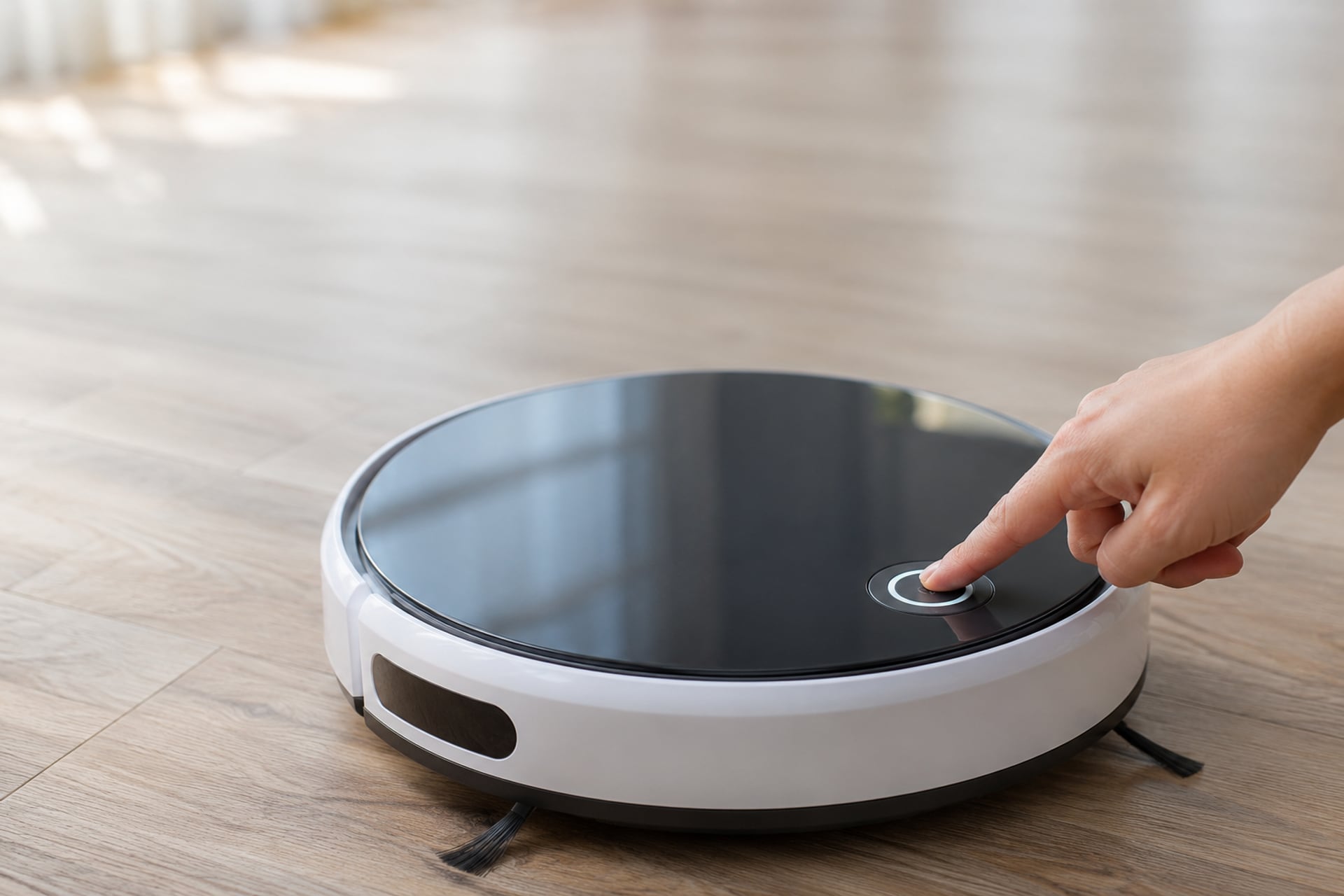
A Roborock that freezes, ignores the app or will not shut down can be reset in three different ways, and they do very different things. A restart is the lightest: it presses the robot's Reset button and nothing more. A Wi-Fi reset clears only the network link. A factory reset sends the robot back to its original settings. Picking the lightest one that fits the problem is the whole trick, because the heavier ones mean setting the robot up again.
The steps below come from Roborock's own user manuals, listed at the end with the date we read them. The exact buttons differ from series to series, so if you are not sure which robot you own, find your series first. Where a manual did not state a detail, we say so instead of guessing a combination.
Restart, Wi-Fi Reset or Factory Reset?
Roborock's manuals treat the system reset and the factory restore as two separate steps, and they put them in order: reset the system first, and restore factory settings only if the robot still does not work properly. That order is the right one to follow, and the section below explains why.
What a Restart Does
Roborock's manuals say to reset the system if the robot does not respond when you press a button or cannot be turned off. You press the Reset button and the robot resets automatically. The same manuals add a note that matters: after a system reset, scheduled cleaning, Wi-Fi and similar settings are restored to factory settings. So on these models a restart is not entirely free of side effects, and you should expect to check your schedule and your connection afterward.
What a Wi-Fi Reset Does
A Wi-Fi reset is meant to clear the network link and let you pair the robot again from the app. The manuals we opened for the Q5+ and S8 do not describe a separate Wi-Fi reset procedure, so we do not give a button combination for those two. If your robot will not join the network, our guide to a Roborock not connecting to Wi-Fi goes through the causes in order, and it is usually worth trying those before you reset anything.
What a Factory Reset Does
Roborock's manuals say the robot is restored to factory settings once you hear the voice prompt. That returns the robot to how it shipped, which means the settings you chose, such as schedules and network details, go with it. We did not find the manuals stating exactly what happens to the saved map, so treat the map as something you may have to build again.
How to Restart a Roborock (System Reset)
-
Confirm it is a real freeze
Roborock's manuals use the restart when the robot does not respond to a button press or cannot be turned off. If the robot simply is not charging or is stuck on a rug, a restart will not help.
-
Find the Reset button
The manuals we opened tell you to press the Reset button but, in the text we could read, do not say where it sits. On some models it is under the top cover or behind a small cover, so check the diagram in your own manual. We did not confirm the position for every series.
-
Press Reset once
Roborock says the robot then resets automatically. Give it a minute before you press anything else.
-
Check your schedule and Wi-Fi
Roborock's manuals say scheduled cleaning and Wi-Fi are restored to factory settings after a system reset. Open the Roborock app, confirm the robot is still connected and re-enter anything that is missing.
How to Reset Roborock Wi-Fi
Roborock's Q5+ and S8 manuals, as hosted by manual libraries, contain no stand-alone Wi-Fi reset steps. What they do say is that a system reset puts Wi-Fi back to factory settings. If your problem is only the connection, the practical route is to remove the robot from the Roborock app and add it again, then follow the app's own pairing prompts. For a robot that refuses to pair, start with the causes in our Roborock Wi-Fi guide.
We could not open a Roborock page that lists a Wi-Fi reset combination for the Qrevo, Saros or newer S series, so we are not printing one. Some Roborock models have a Wi-Fi indicator light under the top cover and a button combination for this, and your manual gives it for your exact model. Using a combination from another series can trigger a different reset than the one you wanted.
How to Factory Reset a Roborock
Use a factory reset only after a system reset has failed, when you are selling or giving the robot away, or when Roborock support asks for it. Roborock's manuals list it as a step you take if the robot does not work properly after a system reset.
The Reset Button Method
On the manuals we opened, the method is the same in outline: switch the robot on, press and hold a button, and while holding it press the Reset button, until you hear a voice prompt. The prompt wording changes by series. The S8 and Q5+ manuals give "Restoring factory settings". The S6 MaxV and S4 Max manuals give "Start restoring initial version". The extracted manual text we could read did not name the button you hold along with Reset, so we cannot give it for any series. Your printed manual shows it on the diagram.
| Series | Voice prompt in the manual | What the manual leaves unstated |
|---|---|---|
| Roborock S8 family | Restoring factory settings | The name of the button held with Reset |
| Roborock Q5+ | Restoring factory settings | The name of the button held with Reset |
| Roborock S6 MaxV | Start restoring initial version | The name of the button, and where the Reset button is |
| Roborock S4 Max | Start restoring initial version | The name of the button, and where the Reset button is |
| Qrevo and Saros series | Not stated | We could not open a Roborock page with the sequence, so use your model's manual or the in-app guide |
Voice prompt in the manual
Show specifications
- Roborock S8 family
- Restoring factory settings
- Roborock Q5+
- Restoring factory settings
- Roborock S6 MaxV
- Start restoring initial version
- Roborock S4 Max
- Start restoring initial version
- Qrevo and Saros series
- Not stated
What the manual leaves unstated
Show specifications
- Roborock S8 family
- The name of the button held with Reset
- Roborock Q5+
- The name of the button held with Reset
- Roborock S6 MaxV
- The name of the button, and where the Reset button is
- Roborock S4 Max
- The name of the button, and where the Reset button is
- Qrevo and Saros series
- We could not open a Roborock page with the sequence, so use your model's manual or the in-app guide
Resetting Without a Button Combination
If you cannot find the sequence for your series, the safe move is to stop at the restart. The Roborock app and your printed manual are the two places that match your exact firmware and hardware. Guessing from a different series is how a simple restart turns into an unplanned factory reset.
After the Reset
Plan on a short setup session. Open the Roborock app, check that the robot shows as online and, if it does not, add it again by following the pairing prompts. Roborock robots pair on 2.4 GHz networks in most setups, so put your phone on that band while you do it. We did not open a Roborock page that confirms this for every series, so confirm it in your manual.
Then rebuild what the reset removed. Confirm your cleaning schedule, run one full cleaning so the robot maps the home again, and check that your rooms and no-go zones are back before you rely on the schedule. If you have a model that stores multiple floors, repeat the mapping run on each one.
When a Reset Doesn't Help
A reset fixes software states. It does not fix hardware or dirt. If the robot still misbehaves, the cause is usually physical.
A Charging Problem
A robot that dies mid-run or will not wake is usually a dock, contact or battery problem. Our Roborock not charging guide covers the checks in order.
Dirty Sensors
A robot that stops for no reason, falls off edges or cannot find its dock often has dirty sensors. Our guide on how to clean Roborock sensors shows which ones to wipe. For symptoms that are not specific to Roborock, our robot vacuum troubleshooting hub sorts them by cause.
How to Reset a Roborock FAQ
Sources
- Roborock S8 CE User Manual, Restore factory settings and System reset, roborock.com manual via manualsdir.com, read on November 20, 2026 Source for the Reset button restart, the Restoring factory settings voice prompt and the note that scheduled cleaning and Wi-Fi return to factory settings.
- Roborock Q5+ User Manual, System reset and Restore factory settings, roborock.com manual via manualsdir.com, read on November 20, 2026 Source for the same steps on the Q5+ and for the lack of a separate Wi-Fi reset procedure.
- Roborock S6 MaxV FCC User Manual, Restore factory settings, roborock.com manual via manualsdir.com, read on November 20, 2026 Source for the Start restoring initial version voice prompt.
- Roborock S4 Max User Manual, Restore factory settings, roborock.com manual via manualsdir.com, read on November 20, 2026 Source for the Start restoring initial version voice prompt on the S4 Max.