Troubleshooting
How to Reset a Roomba, by Series
Which button to hold, for how long, and what each reset clears, using iRobot's own instructions for each series.
As an Amazon Associate we earn from qualifying purchases, at no cost to you. How we make money.
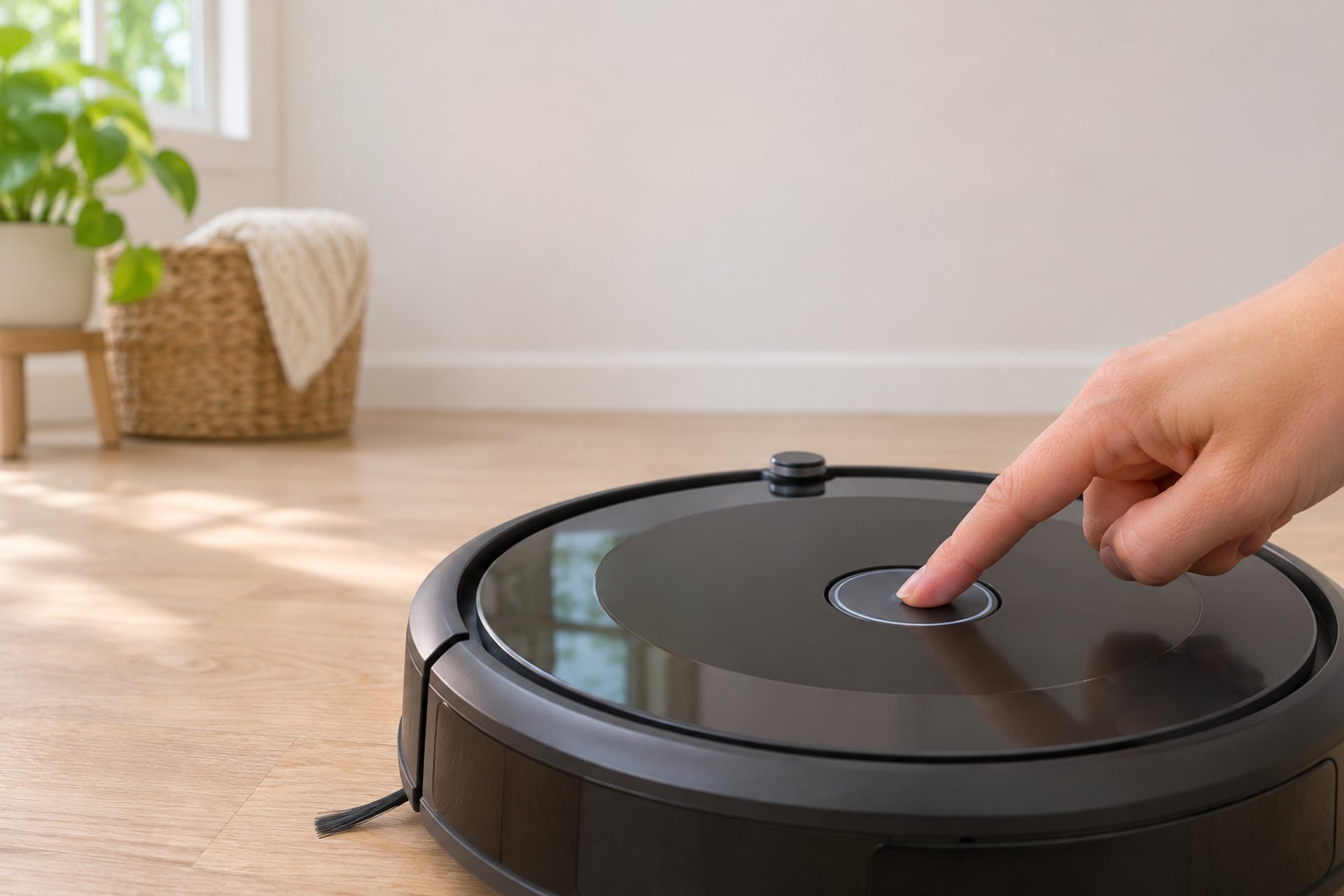
A Roomba that freezes, ignores the app or throws an error you cannot clear usually needs one of two resets, and they are not the same thing. A reboot is a restart: it clears the fault and keeps your maps, schedules and Wi-Fi. A factory reset wipes the robot back to how it left the box. Choosing the wrong one is the only way to turn a small problem into a big one, so this guide keeps them apart and gives the button combination for each series.
Every step below comes from iRobot's support articles, listed at the end with the date we read them. The combination depends on your series, so find your series first if you are not sure which Roomba you own. If the robot is not charging, start with our Roomba not charging guide instead, which covers the battery reset in detail.
Reboot or Factory Reset?
iRobot's own advice is to always try a reboot before a factory reset, and to contact iRobot Customer Care before a factory reset. The difference between the two is worth a minute, because one is harmless and the other is not.
What a Reboot Clears
iRobot describes a reboot as a safe refresh that clears many common errors and does not delete your maps, schedules or preferences. On Roomba models without Wi-Fi, iRobot says a reboot resets the robot's clock, but the cleaning schedule stays. A reboot can take up to about 90 seconds to finish, so give the robot time before you decide it did nothing.
What a Factory Reset Erases
iRobot says a factory reset deletes all data and returns the robot to its original settings. That covers language, cleaning preferences and time zone, which go back to defaults, plus the robot's link to your iRobot account and any connection to a third-party smart speaker. iRobot also says an app reset removes the robot from your app account, while a manual button reset leaves the cloud and account associations in place. Which of the two you pick therefore changes what you have to set up again.
How to Reboot a Roomba
For a button reboot, iRobot says to take the robot off the dock and hold the button listed for your series for the stated time. A white light and a tone or voice prompt show the reboot has started. Start with the table to find your row, then use the step list for the details of your family of models.
| Series | What to hold | For how long |
|---|---|---|
| Roomba Mini, 100/1000, 200/2000, Plus 400/500/600, Max 700/800 | Power | 10 seconds |
| Roomba i series and s series | CLEAN | 20 seconds |
| Roomba j series and Combo 10 Max | CLEAN | 9 seconds |
| Wi-Fi connected Roomba 800 and 900 series | CLEAN | 10 seconds |
| Roomba e series and non-Wi-Fi 500, 600 and 700 series | HOME and SPOT together | About 10 seconds |
| Roomba Essential | HOME and SPOT together | About 12 seconds |
| Roomba Combo (power switch under the top cover) | The power switch, not a button | Off for 10 seconds, then on |
What to hold
Show specifications
- Roomba Mini, 100/1000, 200/2000, Plus 400/500/600, Max 700/800
- Power
- Roomba i series and s series
- CLEAN
- Roomba j series and Combo 10 Max
- CLEAN
- Wi-Fi connected Roomba 800 and 900 series
- CLEAN
- Roomba e series and non-Wi-Fi 500, 600 and 700 series
- HOME and SPOT together
- Roomba Essential
- HOME and SPOT together
- Roomba Combo (power switch under the top cover)
- The power switch, not a button
For how long
Show specifications
- Roomba Mini, 100/1000, 200/2000, Plus 400/500/600, Max 700/800
- 10 seconds
- Roomba i series and s series
- 20 seconds
- Roomba j series and Combo 10 Max
- 9 seconds
- Wi-Fi connected Roomba 800 and 900 series
- 10 seconds
- Roomba e series and non-Wi-Fi 500, 600 and 700 series
- About 10 seconds
- Roomba Essential
- About 12 seconds
- Roomba Combo (power switch under the top cover)
- Off for 10 seconds, then on
Reboot the Compact and Classic Models: Mini, 100/1000, 200/2000, Plus and Max 700/800
-
Take the robot off the dock
iRobot says to perform the button reboot with the robot off the dock.
-
Hold the Power button for 10 seconds
Keep holding until the robot tells you the reboot has begun. iRobot says the white light and a tone or voice prompt confirm it.
-
Wait for the restart
Allow up to about 90 seconds. iRobot says to hold the button for 3 seconds again to turn the robot back on if it stays off.
Reboot the Combo, j, i, s and Wi-Fi 800/900 Models
-
Take the robot off the dock
The robot should be off the dock for every button reboot in iRobot's article.
-
Hold CLEAN for your series' time
Hold CLEAN for 20 seconds on an i series or s series robot, 9 seconds on a j series or Combo 10 Max, and 10 seconds on a Wi-Fi connected 800 or 900 series.
-
Release when the light and tone start
A white light and a tone or voice prompt mean the reboot has started. It can take up to about 90 seconds.
-
On the original Roomba Combo, use the switch
iRobot's steps for the Roomba Combo are to open the top cover, switch the power off, wait 10 seconds and switch it back on.
Reboot the e Series, Essential and Older 500, 600 and 700 Models
-
Take the robot off the dock
Set it on a floor or table, not on the dock.
-
Hold HOME and SPOT together
Hold both for about 10 seconds on an e series or a non-Wi-Fi 500, 600 or 700 series. iRobot lists about 12 seconds for the Roomba Essential. iRobot says a reboot tone plays when you release.
-
Check the underside of a 600 series first
iRobot says to remove the bin and look at the underside of a 600 series robot. If there is a green dot, remove the battery, leave it out for 30 seconds and reinstall it. If there is no green dot, use the HOME and SPOT method.
iRobot's reboot article does not list the Roomba 105, 205 or the newer Plus and Max models of 2025 and 2026 by name, and we found no separate iRobot page with their button sequence. For those, we only know what the app offers: iRobot says the Roomba Home app has a Reboot Roomba command under the three-dot menu on the Robots tab (older robots use Product Settings in the classic iRobot HOME app). Check your robot's printed manual before you try a combination from another series.
How to Factory Reset a Roomba
Use this after a reboot has failed, when you are selling or giving the robot away, or when iRobot Customer Care asks for it. iRobot lists two routes and recommends the app one. Neither is a casual step, so read the warning above once more first.
Reset from the App
This route removes the robot from your app and disconnects its saved data from the iRobot cloud. iRobot gives the menu path for each app:
- Roomba Home (the newer app): select the robot, then Robot Settings, then About Roomba, then Factory Reset and Remove Robot.
- iRobot HOME (the classic app): Product Settings, then About (the robot's name), then Remove Device from Account.
The newer app is where the map toggle lives, so it is the one to use on a robot with Imprint Smart Map.
Reset with the Buttons
The button method keeps your cloud data, app data and account associations in place. iRobot lists the sequence per series:
| Series | iRobot's button sequence |
|---|---|
| Roomba Mini, 100/1000, 200/2000, Plus 400/500/600, Max 700/800 | Hold Home for 5 seconds. When the robot announces the next step, hold Home and Power together for 5 seconds, and hold until you hear the robot's instructions. |
| Roomba j series and Combo 10 Max | Remove the dust bin. Hold CLEAN for 7 seconds until a tone plays, then tap CLEAN two more times to confirm. |
| Roomba i series and s series | Hold HOME, Spot Clean and CLEAN together until the ring around CLEAN swirls. iRobot gives no time. |
| Roomba e series | Hold HOME, Spot Clean and CLEAN for 20 seconds, then release. |
| Roomba Essentials | Hold HOME, Spot Clean and CLEAN for about 7 seconds, until the ring around CLEAN swirls. The boot sound plays about 5 seconds later. |
| Roomba 900 series | Hold Dock, Spot Clean and CLEAN until all the LEDs light. |
| Wi-Fi connected Roomba 600 and 800 series | Hold Dock, Spot Clean and CLEAN until a beep sounds, then release. |
| Roomba Combo (original) | Open the lid, then hold the recessed Reset button, to the left of the On/Off switch, for 10 seconds. |
iRobot's button sequence
Show specifications
- Roomba Mini, 100/1000, 200/2000, Plus 400/500/600, Max 700/800
- Hold Home for 5 seconds. When the robot announces the next step, hold Home and Power together for 5 seconds, and hold until you hear the robot's instructions.
- Roomba j series and Combo 10 Max
- Remove the dust bin. Hold CLEAN for 7 seconds until a tone plays, then tap CLEAN two more times to confirm.
- Roomba i series and s series
- Hold HOME, Spot Clean and CLEAN together until the ring around CLEAN swirls. iRobot gives no time.
- Roomba e series
- Hold HOME, Spot Clean and CLEAN for 20 seconds, then release.
- Roomba Essentials
- Hold HOME, Spot Clean and CLEAN for about 7 seconds, until the ring around CLEAN swirls. The boot sound plays about 5 seconds later.
- Roomba 900 series
- Hold Dock, Spot Clean and CLEAN until all the LEDs light.
- Wi-Fi connected Roomba 600 and 800 series
- Hold Dock, Spot Clean and CLEAN until a beep sounds, then release.
- Roomba Combo (original)
- Open the lid, then hold the recessed Reset button, to the left of the On/Off switch, for 10 seconds.
The Roomba 105, 205 and the other 2025 and 2026 models are not named in iRobot's reset article. Instead of guessing a combination from another series, use the app route (Factory Reset and Remove Robot in the Roomba Home app) or ask iRobot Customer Care for the sequence that matches your serial number.
After the Reset: Reconnect Wi-Fi and Rebuild the Map
A reboot normally leaves you where you were. A factory reset does not, so plan for ten or fifteen minutes of setup. The order below follows iRobot's setup article.
Get the Wi-Fi Right First
Put the dock on a level, clear surface near your router, plug it in and check that the dock light is on. Turn on Bluetooth and location services on your phone, with Precise Location enabled, and connect the phone to the network you want the robot to use. iRobot says its setup does not support WPA3 security, and it does not recommend guest networks.
Some models connect only on 2.4 GHz, and iRobot names the Roomba Essential, i1 to i5, Combo i8, Combo, 900, 800 and 670/690 among them. If yours is one, the phone must be on the 2.4 GHz network during setup. iRobot says that network is usually the one with no suffix or with 2G or 2GHz in its name, while the 5 GHz one often carries 5G or 5 in its name. On a mesh system such as Eero or Orbi, iRobot says you may need to switch off the 5 GHz band for a few minutes during setup.
Move to a New Wi-Fi Network Without Resetting
If you only changed your router, you probably do not need a factory reset at all. iRobot says to connect your phone to the new network, open the iRobot HOME app, go to the CLEAN screen, tap Settings, then Wi-Fi Settings, select the network and enter the password. If the app shows Roomba Cannot Connect Right Now, iRobot's route is Product Settings, then Wi-Fi Settings, then Reconnect or Change Product Wi-Fi, and then you re-enter the password.
Re-add the Robot and Rebuild the Map
After an app reset, add the robot again from the app menu with Add your product and follow the prompts for your model. iRobot says newer models ask you to press the robot's button before you enter Wi-Fi details, while older ones ask for the Wi-Fi details first. Then name the robot and finish setup. On a LiDAR robot, iRobot says a new map takes a few minutes, so run a first cleaning and check that your rooms and no-go zones are back before you rely on the schedule again.
When a Reset Doesn't Fix It
If the robot still misbehaves after a reboot and a factory reset, a button combination is no longer the answer. Two causes account for most of what is left, and both are physical.
A Battery or Charging Problem
A robot that dies mid-run, shows a charging error or will not wake is usually a battery, contact or dock problem. Our Roomba not charging guide walks through iRobot's checks and charging error numbers, and our Roomba battery replacement guide covers how to match a replacement to your model. If a light or color is the symptom, what the Roomba red light means explains it.
Worn Parts
A robot with a tangled brush, a clogged filter or a full bin can behave like a faulty one. Our Roomba replacement parts guide lists what wears out and how often. The two replacement kits below are iRobot's own maintenance sets. Match the series on the listing to your robot before you order.
Replacement Parts and a Battery
These are the maintenance parts and a third-party battery for the robots in this guide. Check each listing's compatibility line against your exact model.
-
1Maintenance kit for the Roomba 105 series
iRobot Roomba Authentic Replacement Parts Replenishment Kit for Roomba 105 Series
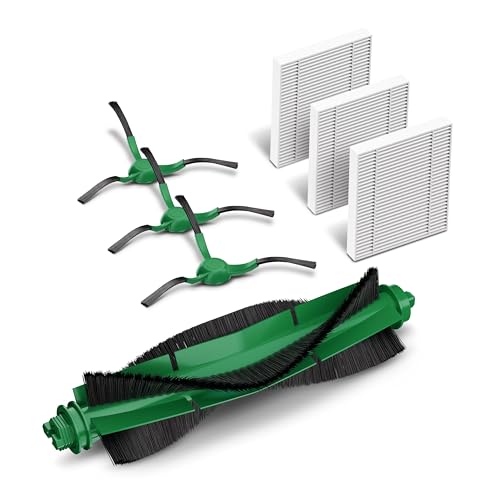
The listing describes it as everything for regular maintenance on a Roomba 105 series robot, with 3 filters, 3 edge-sweeping brushes and 1 multi-surface bristle brush. The listing says a dirty filter weakens suction and worn brushes do not grab debris as well.
-
2Maintenance kit for e, i and j series
iRobot Authentic Replacement Parts Replenishment Kit
The listing says it covers regular maintenance on Roomba e, i and j series robots and the Roomba Combo i5 and j5, and includes 3 high-efficiency filters. It is an iRobot part, not a third-party copy.
-
3Battery for older 500, 600, 700 and 800 series (third party)
Tenergy 14.4V 3850mAh NiMH Battery for Roomba 800 700 600 500 Series
A battery made by Tenergy, not by iRobot. It is a NiMH battery, so it is not for the e, i, j or s series, and its compatibility list is the seller's statement.


Listing details read on November 19, 2026. Compatibility is the seller's or iRobot's statement on the listing, so confirm your model number on the underside of the robot.
If the robot is old, the fixes keep stacking up and a reset only buys a week, it may be time to compare current models in our iRobot Roomba reviews. For problems that are not specific to Roomba, our robot vacuum troubleshooting hub sorts the symptoms by cause.
How to Reset a Roomba FAQ
More from our guides: Roomba not connecting to Wi-Fi
Sources
- iRobot Customer Care, Rebooting Your Robot: All Roomba and Braava Models, homesupport.irobot.com, read on November 19, 2026 Source for every reboot button, hold time, the 90 second restart, the 600 series green dot check, the Roomba Combo switch method and the app reboot commands.
- iRobot Customer Care, Why factory reset your robot and how to do it, homesupport.irobot.com, read on November 19, 2026 Source for what a factory reset deletes, the app and button methods, the per-series button sequences and the Imprint Smart Map toggle.
- iRobot Customer Care, How do I Select a New or a Different Network for the iRobot HOME App, support.irobot.ca, read on November 19, 2026 Source for changing the Wi-Fi network of a robot that is already set up.
- iRobot Customer Care, Setting up your Wi-Fi Connected Robot with the iRobot HOME App, homesupport.irobot.com, read on November 19, 2026 Source for the Wi-Fi requirements, the 2.4 GHz model list, the setup steps and the Reconnect or Change Product Wi-Fi route.
- iRobot Roomba 105 and e, i, j series Replenishment Kits and Tenergy NiMH battery product listings, Amazon US, read on November 19, 2026 Source for the parts counts, the series each kit says it covers and the battery's chemistry. Compatibility is the maker's or seller's own statement.
The RobotVacuumer letter
New robot vacuum picks and plain advice on choosing and living with one, about once a month.