Troubleshooting
Shark Robot Vacuum Not Charging: What to Check First
A short checklist for a Shark robot that will not charge: the switch, the dock, the contacts, the lights, the battery, and the point where a replacement makes more sense than another repair.
As an Amazon Associate we earn from qualifying purchases, at no cost to you. How we make money.
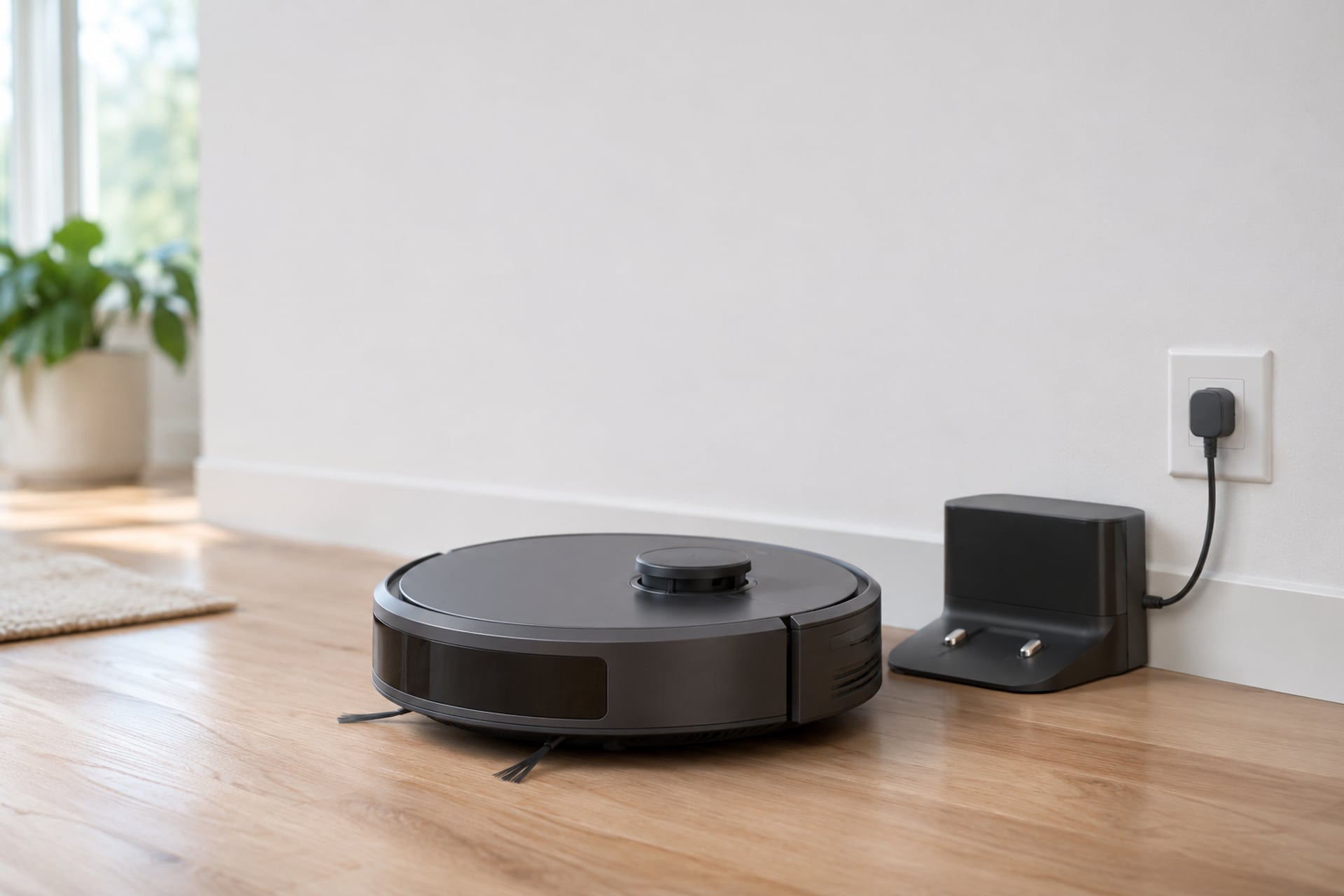
A Shark robot that will not charge is rarely dead. Most of the time the cause is small and sits between the robot and the wall: a switch that got bumped, a dock with no power, a robot that is not quite seated, or two metal contacts that no longer touch. Those are the things to rule out first, and each one takes a minute or two.
This page walks through them in the order that saves the most time. It draws on the Shark Matrix quick start manual, which is Shark's own document, and a troubleshooting guide from Digital Trends. Where a source does not say something, such as what a red light means, we say so instead of guessing. Shark makes many robot generations, so the light colors and the battery details differ by model. Your own manual is the final word for your robot.
The Fix Order
-
Check the robot's power switch
Digital Trends points out that bumping furniture can flip the switch off, and a robot that is off may not charge. Look at the switch on the robot and make sure it is in the on position.
-
Check that the dock has power
The Shark Matrix manual says the dock indicator turns green when the dock has power. Digital Trends gives the same test for a working dock. If there is no light, push the plug in again and try another outlet.
-
Place the robot on the dock by hand
The Matrix manual says that if the robot has no charge or cannot return to the dock, you should place it on the dock yourself. Seat it so the contacts on its underside touch the contacts on the dock. A beep tells you charging has begun on the Matrix.
-
Clean the charging contacts
Digital Trends tells you to clean the two metal contact points on the robot and the two metal plates on the dock. A film of dust can stop the connection, and a clean contact is a free fix.
-
Check the dock position
Move anything away from the dock. The Matrix manual asks for 1 foot of space on each side and 2 feet in front, and Digital Trends says about 3 feet on each side and 5 feet in front. Because the two sources differ, use the larger gap while you troubleshoot.
-
Look at the battery
Digital Trends suggests opening the battery case. If the battery is dirty or has slipped out of its contacts, clean it and seat it again. If it looks worn or damaged, you will need a replacement for your model.
Check the Dock Placement and Power
A charging problem often starts with the dock, not the robot. The Shark Matrix manual says to plug in the dock and confirm that it has power, and it lists the green dock light as the sign. If your dock stays dark, try another wall outlet before you suspect the robot. The manual also tells you to put the dock against a wall on a level bare floor in a central area, and not against baseboards or heating elements.
Position matters for the robot's trip home as well. The manual warns that moving the dock means the robot has to map the home again, so pick a permanent spot with a good Wi-Fi signal and leave it there. The manual also says that in wet cleaning mode the dock can be blocked by carpet, which can stop the robot from returning. That is a navigation fault, not a charging fault, but it looks the same from the couch: a robot that stops short and runs flat.
One more point from the manual: the robot and its battery should not be charged or stored outside a range of 50 to 104 degrees Fahrenheit (10 to 40 degrees Celsius), and should come back to room temperature first. If your dock sits in a cold garage or a hot sunroom, that may be reason enough for a robot that is slow or unwilling to charge.
A short test settles it. Put the robot on the dock by hand. If it starts to charge, the dock and the contacts are fine and the problem is that the robot is not finding its way back. If it still does not charge, move on to the contacts.
Clean the Charging Contacts
The contacts are the two small metal points under the robot and the two metal plates on the dock. Digital Trends tells you to clean both sets and notes that charging is confirmed when the battery lights blink. A dry, soft cloth is the safe choice. Do not use harsh chemicals on a contact, and unplug the dock first so you are not wiping a live plate.
Look closely while you are there. A contact that is bent, loose or scorched is a repair job, not a cleaning job. Also check whether hair has wrapped around the wheels or brush, since a robot that sits tilted on the dock can miss the plates by a few millimeters. If you have a pet, this is the likely culprit. Our general robot vacuum not charging guide for Roomba follows the same logic for another brand, which shows how common these causes are across the category.
What the Lights Mean
The lights are the quickest way to tell whether a Shark robot is charging, but the meaning changes with the model. The table below lists only what a named source states. If your robot shows a color that is not in the table, check the manual for your model number.
| Light or sound | What the source says | Source |
|---|---|---|
| Dock light green | The dock has power | Shark Matrix manual |
| Dock light blue | The robot is charging (the light changes from green to blue) | Shark Matrix manual |
| Both robot white LEDs flashing | Charging is in progress | Shark Matrix manual |
| Both robot white LEDs steady | Charging is complete | Shark Matrix manual |
| Robot beeps on the dock | Charging has started | Shark Matrix manual |
| Blue battery lights | Show battery strength on the model Digital Trends covers; at least one lit light suggests enough charge to return to the dock; blinking lights confirm charging | Digital Trends |
| Red light, no light, other colors | Not listed in the Matrix manual. Digital Trends says other colors signal other problems but does not list them | Not stated |
What the source says
Show specifications
- Dock light green
- The dock has power
- Dock light blue
- The robot is charging (the light changes from green to blue)
- Both robot white LEDs flashing
- Charging is in progress
- Both robot white LEDs steady
- Charging is complete
- Robot beeps on the dock
- Charging has started
- Blue battery lights
- Show battery strength on the model Digital Trends covers; at least one lit light suggests enough charge to return to the dock; blinking lights confirm charging
- Red light, no light, other colors
- Not listed in the Matrix manual. Digital Trends says other colors signal other problems but does not list them
Source
Show specifications
- Dock light green
- Shark Matrix manual
- Dock light blue
- Shark Matrix manual
- Both robot white LEDs flashing
- Shark Matrix manual
- Both robot white LEDs steady
- Shark Matrix manual
- Robot beeps on the dock
- Shark Matrix manual
- Blue battery lights
- Digital Trends
- Red light, no light, other colors
- Not stated
Matrix, AI Ultra and PowerDetect Docks
The Shark Matrix manual covers a dock model (XDRV2600WD) and a battery model (RVBAT850A), and it says to use only those parts, because other batteries or chargers can create a fire risk. It also says the battery is pre-installed and should be charged completely before first use, which it says can take up to 6 hours. If you own a Matrix, our Shark Matrix page has more on the model.
Shark's documents we cite do not list charging differences for the AI Ultra line or for the PowerDetect self-emptying bases. What we can say from the product listing is that the PowerDetect AV2800ZE comes with a self-emptying and self-cleaning base that Shark calls the NeverTouch Pro Base, which also empties debris and refills water. A base with more jobs has more parts that can lose power, so check the dock's power light first. Beyond that, follow the manual for the exact dock you own.
When the Battery Is the Problem
If the switch is on, the dock has power and the contacts are clean and touching, the battery is the next suspect. Digital Trends says to open the battery case, to clean and reposition the battery if it is dirty or has slipped from its contacts, and to order a matching replacement from Shark's parts page if it is old or damaged. The Matrix manual adds that the battery is a specific part for that model and that you should not substitute another.
We looked for an authentic Shark replacement battery for these robots in the product listings we read on November 6, 2026, and did not find one for sale. We will not point you to a third-party battery, since the manual warns about non-approved parts. The route is Shark's own support: give them your model number and ask what they offer for your robot. That keeps your warranty position clear as well.
One note on the question of how long a Shark battery lasts. The Matrix manual gives no lifespan figure, so we will not invent one. A battery that charges but runs out after a short job is a battery on its way out, and a battery that will not charge at all after every step on this page is the same story with a stronger sign.
When to Replace the Robot
A replacement makes sense when the charging fault survives the full checklist, when Shark cannot supply a battery for your model, or when the robot is old enough that you would rather have newer navigation. Digital Trends reaches the same point and suggests thinking about a new model if nothing else works.
If you stay with the brand, our Shark robot vacuum reviews cover the line, and the Shark vs Roomba comparison helps if you are open to switching. Below are two Shark models from our product listings, one at each end of the range. Both list a rechargeable robot that returns to charge, and both are shown as options, not as reviews.
Two Shark Robots to Consider as a Replacement
These two are read from the maker's listing only. We do not rate them here.
-
1$ tier, carpets and hard floors
Shark Navigator Robot Vacuum RV2110
Shark says it uses SmartPath Navigation with spot LiDAR, detects and avoids objects, and will recharge and resume cleaning when the battery runs low. It is a vacuum only, with no mop or self-emptying base stated.
-
2$$ tier, vacuum and mop with a base
Shark PowerDetect Robot Vacuum and Mop Combo AV2800ZE
Shark says its NeverTouch Pro Base empties debris into a 60-day-capacity bin, refills the water tank for up to 30 days and washes and dries the mopping pad. It uses 360 degree LiDAR navigation.


Listing details read on November 6, 2026. Battery capacity and run time are not stated in either listing.
Shark Robot Vacuum Not Charging FAQ
Sources
- Shark Matrix Quick Start Manual (SharkNinja), via ManualsLib, read on November 6, 2026 Source for the dock and battery model numbers, the 6 hour first charge, the temperature range, dock placement distances, the light and beep meanings for the Matrix, and the not-charging checks.
- How to fix a Shark robot vacuum that's not charging, Tyler Lacoma, Digital Trends, updated February 29, 2024, read on November 6, 2026 Source for the switch, dock light, contact cleaning, clearance, battery inspection and replacement steps, and for the blue battery lights.
- Shark Navigator RV2110 and Shark PowerDetect AV2800ZE product listings, Amazon US, read on November 6, 2026 Source for the features described in the replacement options.
The RobotVacuumer letter
New robot vacuum picks and plain advice on choosing and living with one, about once a month.