Troubleshooting
How to Reset a Shark Robot Vacuum
A restart, a Wi-Fi reset and a factory reset are three different jobs. Here is which one to use, the steps Shark's own manuals give, and what is left unconfirmed.
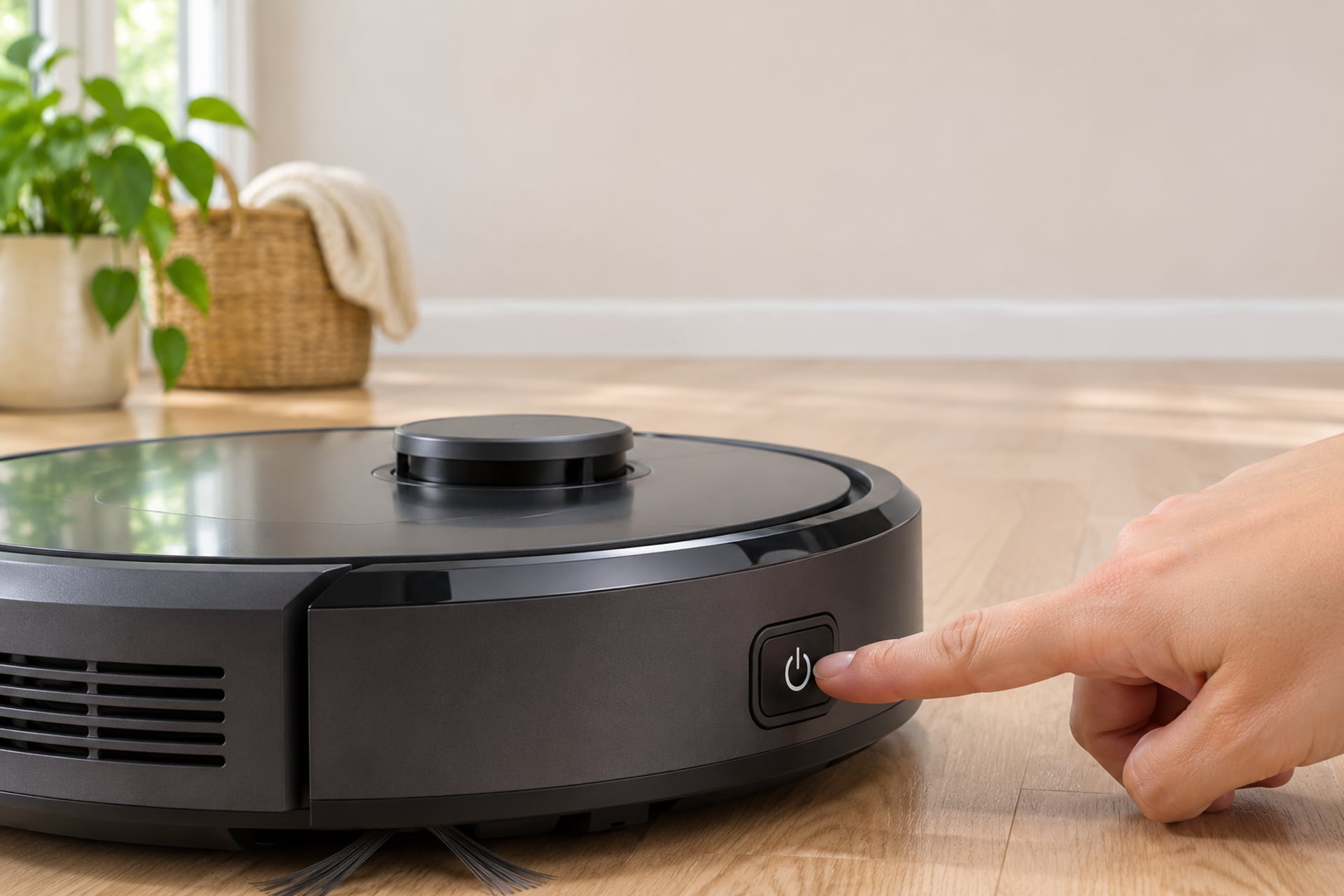
When a Shark robot stops answering the app, freezes mid-run or drops off Wi-Fi, "reset it" can mean three very different things. Switching it off and on again is harmless. Re-pairing it with your Wi-Fi is a small job. Wiping it back to factory condition is the one that costs you something. The mistake most owners make is jumping to the last one.
This guide takes them in order, from the gentlest to the most drastic. The steps come from Shark's own owner's manuals, which we opened for the IQ, PowerDetect and Matrix families, and each one is named where it is used. Shark does not publish one reset method for every model, so where a manual we could read does not cover a step, we say so instead of guessing. If your robot keeps failing after a reset, our robot vacuum troubleshooting guide is the next stop.
Which Reset Do You Need?
Start with the symptom, not the button combination.
- The robot is frozen, will not respond or behaves oddly: restart it. This is a power cycle and nothing more.
- The app says the robot is offline or it will not connect: reset the Wi-Fi connection and pair it again. Shark's manuals put most of the fix on the phone and the router side.
- You are selling the robot, handing it on, or every other fix has failed: only then consider a factory reset.
A restart is the one that is safe to try first on any model. Shark's owner's manuals describe the restart as a power-off and power-on, with no mention of anything being erased.
What Each Reset Erases
Shark's manuals we read describe how to restart the robot and how to reconnect it, but they do not list what a factory reset deletes. One third-party guide, VacuumOwl (last updated July 9, 2026), says a soft reset keeps the map, schedules and Wi-Fi pairing, while a factory reset removes the saved map, the schedules and the Wi-Fi pairing. That matches what most owners expect, but treat it as an outside description, not a Shark statement. If the map matters to you, restart first and keep the factory reset as the last step.
Restart a Shark Robot (Power Cycle)
Shark's manuals give two different restart methods, and which one applies depends on whether your robot has a power switch.
Robots With a Power Switch on the Side
The Shark IQ owner's manual (RV1000AE series) says the robot has a power switch on its side, with (I) as ON and (O) as OFF, and that turning it on should produce an audio prompt. Its Wi-Fi troubleshooting section says to press the switch to the (O) position, wait 10 seconds, then turn the power back on and wait for the audio prompt.
Robots That Power Through the Dock Button
The Shark PowerDetect RV2800S manual describes a robot without that kind of switch. It says to reboot by pressing and holding the DOCK button on the robot for 12 seconds. To turn it on, place it on the Self-Empty Base or hold the DOCK button for 5 to 7 seconds, and to turn the power off, press the DOCK button for 5 to 7 seconds. The Shark Matrix manual also says to turn that robot on or off by holding the DOCK button for 5 to 7 seconds.
How to Restart Your Shark Robot
-
Find out which type you have
Turn the robot over or look along its side. If you find a power switch marked (I) and (O), use the switch steps. If there is no switch, you have a dock-button model.
-
Power it off
With a switch, slide it to (O). On a dock-button model such as the PowerDetect RV2800S, press the DOCK button for 5 to 7 seconds, or hold it for 12 seconds to reboot as the manual describes.
-
Wait 10 seconds
Shark's IQ and PowerDetect manuals both give 10 seconds as the wait before powering back on.
-
Power it back on
Slide the switch to (I) and listen for the audio prompt, or place a dock-button model on its base. Check that the app shows the robot online again.
We could not open Shark's own page for the AI, AI Ultra, Navigator or ION lineups, so we do not give a model-specific restart for them here. Check the manual that came with the robot, which should say whether it has a side switch. Several third-party guides list different button holds for these models, and they do not agree with each other.
Reset Wi-Fi and Reconnect to the SharkClean App
If the robot is the problem only because it dropped off the network, you rarely need more than a Wi-Fi reconnect. Shark's IQ manual notes that a robot may temporarily lose connectivity when it goes under furniture, moves far from the router or enters a zone that blocks Wi-Fi, and that it should reconnect on its own. The steps below are for when it does not.
Check the Network First
Both the IQ manual and the PowerDetect manual say Shark robots work on 2.4 GHz networks only. The IQ manual adds that typical home networks support both 2.4 GHz and 5 GHz, so make sure your phone is on the 2.4 GHz network when you enter the password. It also says not to use a VPN or proxy, and to make sure Wi-Fi isolation is off on the router. The IQ manual's quick start card says the same: your network must be 2.4 GHz to work with the app.
How to Reconnect a Shark IQ to Wi-Fi
-
Put the phone on your home 2.4 GHz network
The robot is paired through your phone, so the phone has to be on the right network before you start.
-
Make sure the robot is on
The IQ manual says the robot's side power switch must be in the (I) ON position, with an audio prompt when power comes on.
-
Hold Dock and Clean together
Press and hold both the Dock and Clean buttons at the same time until you hear the audio prompt and the Wi-Fi light on the robot blinks.
-
iPhone owners: pick the robot in Wi-Fi settings
The manual says to exit the app, open Wi-Fi settings, select your robot from the list, then return to the SharkClean app.
-
Choose your 2.4 GHz network
Select the 2.4 GHz network in the app and enter the password. The quick start card says the Wi-Fi icon on the robot turns steady blue once pairing works.
If It Still Will Not Connect
The IQ manual's next steps are the restart above (switch to (O), wait 10 seconds, switch back on), then powering the phone off for 30 seconds, then opening the phone's Wi-Fi settings, finding the Shark network and choosing Forget Network, and finally trying the app connection again from the start. The PowerDetect manual says nearly the same: power the robot off, wait 10 seconds, place it back on the base, and use Forget Network on the phone. The PowerDetect manual also lists a pattern for a wrong password, a flashing yellow left LED, and one for no connection, red notification and Wi-Fi LEDs flashing together.
The Dock plus Clean pairing combination belongs to the IQ family. The Shark PowerDetect manual we opened does not describe a dedicated Wi-Fi reset button hold, and we found no Shark-published pairing combination for the ION lineup, so we leave it out.
Factory Reset a Shark Robot
This is the one we are most careful about. None of the three Shark manuals we opened (IQ RV1000AE series, PowerDetect RV2800S, Matrix) describes a factory reset. The IQ manual mentions a hard power reset only in a safety note about the Self-Empty Base's thermal shutoff, which is about the base and not the robot's memory. So we cannot give you a Shark-published button sequence for a full wipe.
What an App Factory Reset Looks Like
VacuumOwl, an independent site, describes the app route as: open SharkClean, select your robot, open Settings, find the Factory Reset option, tap it and confirm the warning, then wait for the robot to restart in its fresh state. The same guide says the exact menu wording differs by model and that on AI and Matrix robots the buttons only reboot the unit, so a full factory reset needs the app. We have not confirmed any of this in a Shark document, and it lists a PowerDetect and an ION button hold that we did not find in Shark's manuals, so we do not repeat those.
Practical advice: use the app route if the robot still connects, and contact Shark support if it does not. The IQ manual lists robot support at 1-888-228-5531 and the support site at sharkclean.com/support.
After Moving House: Remap
If you have moved the robot or its base, you may not need a reset at all. Shark's manuals are clear on this. The IQ manual says to pick a permanent location for the base and that every time you move the base, the robot has to completely re-map the house. The Matrix manual gives the same warning about moving the dock. The IQ manual also says to avoid picking up or moving the robot or the base, because it may not be able to generate a map or find its way back, and that a robot that has been picked up should be returned to within 6 inches of its last location.
When a Reset Does Help After a Move
For a new home, a new router or a new network name, the Wi-Fi reconnect above is the step that matters, and a factory reset is only worth it if the robot keeps trying to use the old map. The PowerDetect manual says the robot runs an Explore Run after setup to build its initial map. Give it the same full-charge, doors-open start you would give a new robot.
When a Reset Does Not Help
If the robot is still dead after a restart, look at the power path before the software. The IQ manual's own checklist for a robot that will not charge says to make sure the robot's side switch is ON, the base's rear switch is ON with the green light lit, and the two metal pads on the robot touch the contacts on the base. Our Shark robot vacuum not charging guide goes through it in more detail. The wider problem list is in our robot vacuum troubleshooting guide.
Repair and Warranty
The Shark IQ warranty page in the manual says SharkNinja gives a One (1) Year Limited Warranty for purchases from authorized retailers, covering original owners only, and that defective units or non-wearable components may be repaired or replaced within that year. If a reset does not fix a fault inside that period, contact Shark customer service before you buy parts.
If you are still choosing a Shark, our Shark ION reviews and Shark Matrix guide cover the robots this page refers to.
Shark Robot Reset FAQ
Sources
- SharkNinja, Shark RV1001AE IQ Robot Self-Empty XL Owner's Manual (RV1000AE series), copy on manuals.plus, read on November 19, 2026 Source for the side power switch, the 10-second restart, the Dock and Clean Wi-Fi reconnect, 2.4 GHz, Forget Network, the re-map after moving the base, the 6 inch rule, the mapping time, the charging checklist and the one-year warranty.
- SharkNinja, Shark PowerDetect RV2800S Owner's Manual, manualslib, read on November 19, 2026 Source for the 12-second DOCK reboot, the 5 to 7 second power on and off, 2.4 GHz, the Wi-Fi recovery steps, the LED patterns and the Explore Run.
- SharkNinja, Shark Matrix manual, manualslib, read on November 19, 2026 Source for the 5 to 7 second DOCK power hold and the warning that moving the dock means the robot must re-map the home.
- SharkNinja, Shark IQ Robot Quick Start Manual, manualslib, read on November 19, 2026 Source for the Dock and Clean pairing hold, the blinking Wi-Fi light, the steady blue Wi-Fi icon and the 2.4 GHz requirement.
- VacuumOwl, How to Reset a Shark Robot Vacuum + Fix WiFi, last updated July 9, 2026, read on November 19, 2026 Independent guide, not Shark. Source only for the app factory reset steps and what each reset erases, and flagged as unconfirmed by Shark.
The RobotVacuumer letter
New robot vacuum picks and plain advice on choosing and living with one, about once a month.