Troubleshooting
Roborock Not Charging or Not Finding the Dock
Two problems that look alike: a robot that sits on the dock and never charges, and a robot that cannot get back to the dock at all. Here is how to tell them apart, what Roborock says to do about each, and where the official guidance stops.
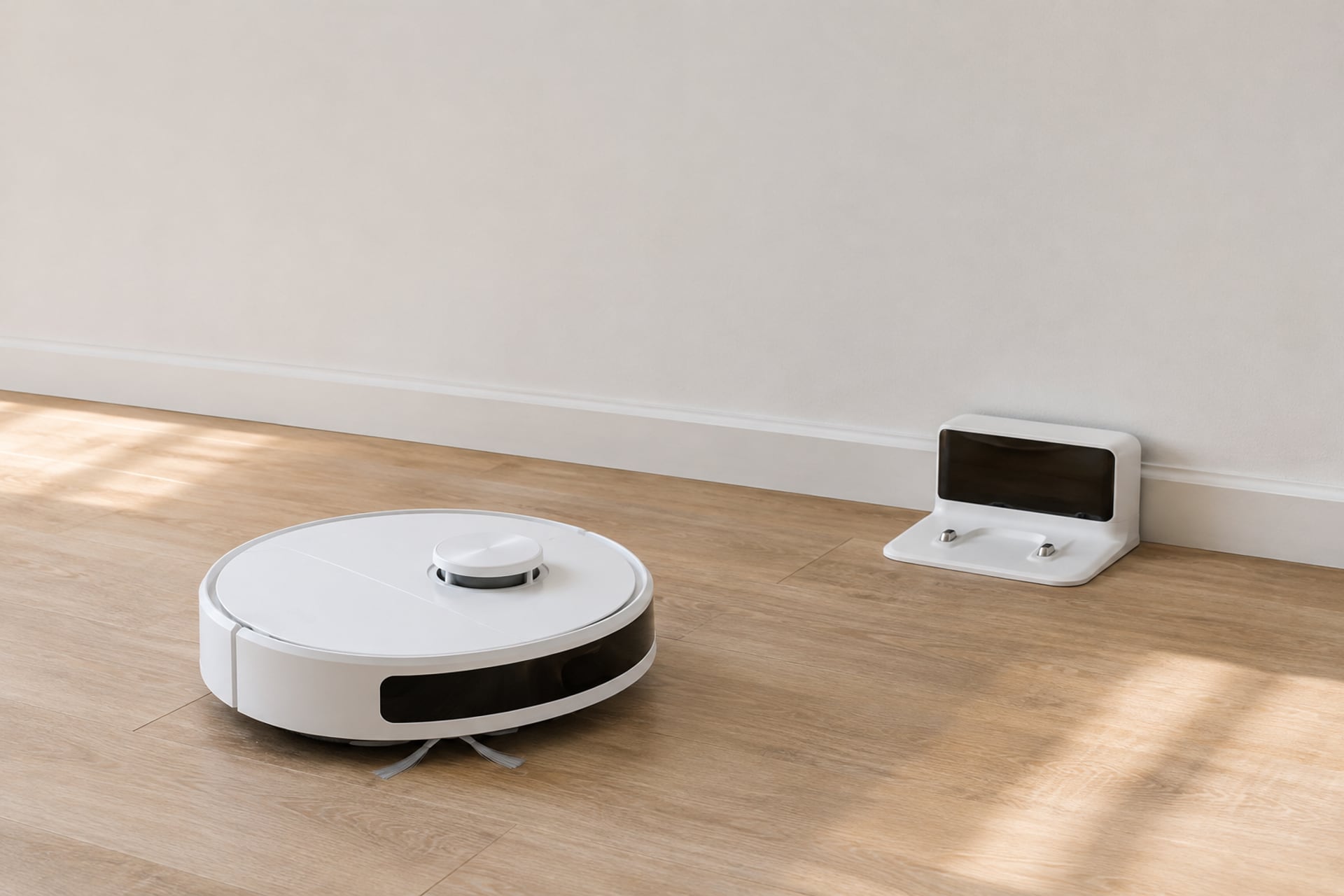
"My Roborock is not charging" can mean two quite different things. In the first, the robot is sitting on its dock and the battery never fills. In the second, the robot cannot find the dock, runs out of battery somewhere in the house and never gets to charge at all. The fixes barely overlap, and most search results blur them together.
This guide separates them. It starts with a short table that matches your symptom to a cause, then covers the charging contacts, the dock position, what happens when the robot loses track of the dock on its map, and what to do when the battery itself is the suspect. Roborock's own support pages are the source for every fix we describe, and they are listed at the end. Where Roborock does not say something, we say so instead of guessing, and that matters most in the battery section, because Roborock's troubleshooting page does not cover the battery at all.
First, Which Problem Do You Have?
Look at where the robot ends up and what the dock does. The table below is our reading of Roborock's guidance, not a Roborock chart, so treat it as a way to pick the right section.
| What you see | Most likely cause | Where to look |
|---|---|---|
| The robot sits on the dock, but the dock light stays on and nothing charges | The charging contacts are not touching, or are dirty | Clean the contacts, below |
| The dock light is dark even with the robot off the dock | The dock has no power | Check the cable at both ends and try another outlet |
| The robot wanders and stops short of the dock | A blocked or dirty signal path, or a dock in a poor spot | Dock placement, below |
| The robot ignores the dock after you moved it or after a new map | The map and the real dock position no longer agree | When the robot loses the dock, below |
| The robot charges, but dies fast or shuts off early | An ageing battery, or a fault that needs support | Battery signs, below |
Most likely cause
Show specifications
- The robot sits on the dock, but the dock light stays on and nothing charges
- The charging contacts are not touching, or are dirty
- The dock light is dark even with the robot off the dock
- The dock has no power
- The robot wanders and stops short of the dock
- A blocked or dirty signal path, or a dock in a poor spot
- The robot ignores the dock after you moved it or after a new map
- The map and the real dock position no longer agree
- The robot charges, but dies fast or shuts off early
- An ageing battery, or a fault that needs support
Where to look
Show specifications
- The robot sits on the dock, but the dock light stays on and nothing charges
- Clean the contacts, below
- The dock light is dark even with the robot off the dock
- Check the cable at both ends and try another outlet
- The robot wanders and stops short of the dock
- Dock placement, below
- The robot ignores the dock after you moved it or after a new map
- When the robot loses the dock, below
- The robot charges, but dies fast or shuts off early
- Battery signs, below
The first two rows are about charging and the next two are about finding the dock. If you are not sure which one you have, start with the contacts and the dock light, because they take a minute and rule out the cheapest causes.
Clean the Charging Contacts
Roborock's troubleshooting page for charging contact faults, which it ties to Error 13, starts with the dock light. How it reads depends on the version of the guidance. In the newer wording, the light on the dock should be off while the robot is sitting on it, which means the contacts are connected and charging is working. If the light stays on with the robot docked, Roborock says the contacts are not properly connected. The older wording on the same page describes the opposite pairing: solid on with no robot, off with the robot placed on it. Both agree on the practical test. The light should go off when the robot is seated, and a light that stays on means a poor connection.
Before you rely on it, check which wording matches your model. Docks differ, and this is a good moment to look at the dock's own manual.
How to Fix a Contact Problem
-
Check the light with the robot off the dock
Lift the robot away. Per Roborock's older wording, the light should now be solid. If it is dark, the dock has no power: reseat the cable at the dock and at the outlet, and try another outlet.
-
Reposition the robot
Set the robot back on the dock and nudge it until the light goes off. Roborock's newer wording says to reposition the robot until the indicator turns off when it stays on.
-
Clean the contacts on the robot and the dock
Wipe the metal contacts on both the robot and the dock to clear dust, stains or oxidation. Roborock says to use a dry cloth or one lightly dampened with alcohol, so skip anything wetter or abrasive.
-
Unplug the dock for about 2 minutes
Roborock's older wording says to unplug the dock for around 2 minutes, then plug it back in. Try a different outlet if the first one is doubtful.
-
Test again
Seat the robot and watch the dock light. If the error returns with clean contacts, good power and a robot that sits flat, Roborock's page offers no further step on its own, and the next move is Roborock support.
Dock Placement and Clearance
A dock in a bad spot can look like a charging fault. Roborock's guidance for a robot that cannot find its dock gives one placement rule: put the dock against a wall, with at least 0.5 m of clearance on either side and 1.5 m in front. That is about 1.6 feet on each side and 5 feet in front. Those are the only distances we use here, because they are the ones Roborock states.
Why Clearance Matters
The dock sends out a signal from its front, and the robot reads it with a sensor on its own front. Furniture, a chair leg, a rug fringe or a cable near the dock can block that signal or tangle the robot on the way in. A dock tucked into a corner, behind a door that swings, or beside a bin is a common setup that breaks the clearance Roborock describes.
A Quick Test for the Spot
Roborock's first suggestion for a robot that cannot find its dock is also its simplest: move the dock and see whether the robot can locate it. If the robot docks fine from a clear spot but not from where the dock sits now, you have your answer, and moving the dock permanently is the fix. Then clean the dock's front signal transmission area and the robot's front sensor, which Roborock lists alongside the move.
When the Robot Loses the Dock
Robots that use a map aim for a point on it. Move the dock without telling the robot, and it drives to the old spot, finds nothing and wanders. Roborock does not publish a step by step relocation procedure on the pages we could read, so this section sticks to what Roborock does say and flags the rest.
The Map Should Look Square
Roborock's page says the map in the app should only be horizontal or vertical. A tilted map is a sign that the robot's idea of the room has drifted. Its advice is to move the dock as described above. It also says you can turn Map Saving off and back on, which creates a new map on the next cleanup.
What Happens to Your Map Data
Turning Map Saving off and on throws away the layout you had, so the room names, zones and no-go areas will need setting up again. Do it when the map is clearly wrong, not as a first move. If you are still deciding between moving the dock and rebuilding the map, move the dock first, because it costs nothing in the app.
Putting the Robot on the Dock by Hand
If the robot is stranded, carry it to the dock yourself and set it down so the contacts meet, then check the light. Roborock's pages we read do not describe a dedicated command for this, so we do not say it is a feature of any model. Check your app and manual for an option on your robot.
Battery Signs
Here the honest answer is short. Roborock's troubleshooting page contains no battery instructions, so we cannot quote a Roborock rule for when a battery is worn out or how to test it. What we can say is general and clearly marked as ours.
What Points to the Battery
A robot that charges normally, then dies much earlier than it used to, or shuts off before a cleaning run that it used to finish, is behaving like a battery that has aged. A robot that will not charge no matter how clean the contacts are and no matter how good the dock power is raises the same question. These are signs, not a diagnosis, and a charging fault in the dock or the robot can look the same.
What Not to Do
Do not open the robot to swap a battery before you have ruled out the contacts and the dock, and do not buy a battery on a guess. We list no battery on this page, because the Roborock batteries sold on Amazon come from third parties we cannot name with confidence, and an unnamed battery is not a pick. If you need a part, our Roborock replacement parts guide shows what we do recommend, and Roborock support can tell you which part your serial number takes.
When to Contact Roborock
If the contacts are clean, the dock has power, the robot sits flat and the problem continues, contact Roborock support with your model and serial number ready. The model matters, because the dock, the contacts and the reset button all differ between robots. If you are not sure which model you own, our Roborock models explained page helps you read the name on the box.
Reset as a Last Step
Roborock's page lists a system reset for an internal error. You open the top cover and press the Reset button. Roborock warns that a system reset restores all current settings to factory defaults, including Wi-Fi and scheduled cleanups. It also says the position of the button varies by model, so your manual or the app is the place to find it.
Because a reset wipes your settings, use it after the contacts, the dock power, the dock position and the map have been checked, not before. The restart, the Wi-Fi reset and the full factory reset do different things on different series, and our Roborock reset guide walks through each of them.
Back to the symptom you started with, the table near the top. If you land on the same row after the reset, the next step is Roborock support. Our robot vacuum troubleshooting hub has the other common faults if the charging problem turns out to be only one of several.
Roborock Not Charging FAQ
Sources
- Roborock Support, Roborock S7 Max Ultra messages and troubleshooting (Error 13, dock placement, map, reset), help.roborock.com, read on November 20, 2026 Source for the dock indicator light behavior, the contact cleaning method, the 2 minute unplug, the 0.5 m and 1.5 m dock clearance, moving the dock, cleaning the dock signal area and the robot's front sensor, the horizontal or vertical map rule, the Map Saving off and on step, and the system reset and its effect on Wi-Fi and schedules. The page is for the S7 Max Ultra, so other models can differ.