Troubleshooting
Roomba Spinning in Circles
Two different behaviors hide behind the same complaint. Here is how to tell them apart, what usually causes each one, and the fixes in the order that costs the least effort.
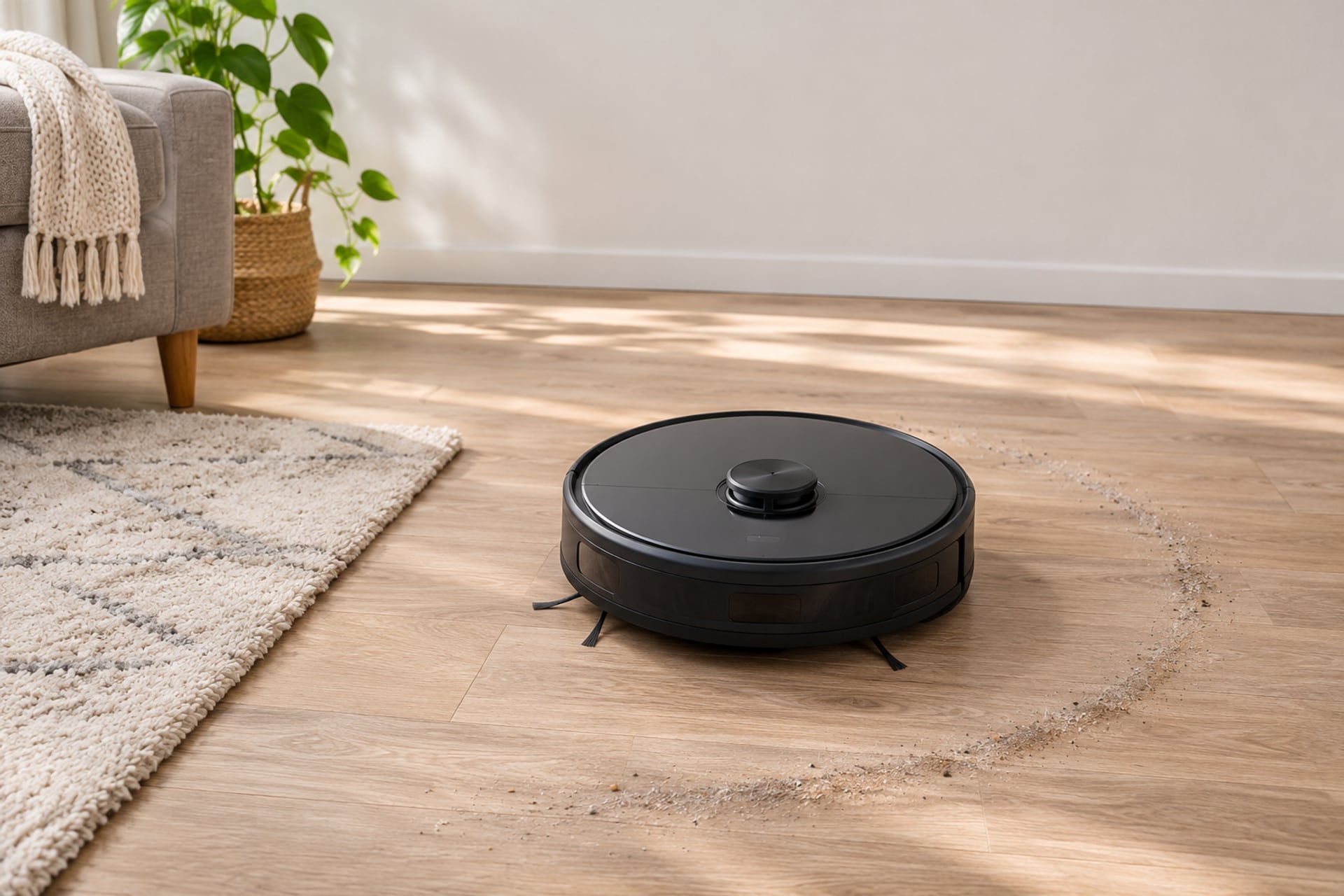
A Roomba that circles is rarely broken in a mysterious way. Owners use the same words for two different behaviors, and each one points at a different part of the robot. In the first, the Roomba turns on one spot, sometimes backing up, and never settles into a cleaning line. In the second, it drives, but it keeps looping through the same stretch of the room, as if it cannot find the way out.
The first behavior is almost always mechanical or a sensor problem: something dirty, jammed or fooled by the floor. The second is more often about navigation, such as a stale map, furniture that moved, or a spot the robot keeps avoiding. This guide sorts the two, then walks through the fixes from the cheapest to the most involved. Where a fix comes from a published source, the source is named in the text and listed at the end. Where we could not confirm something with an open source, we say so instead of guessing.
First, Which Behavior Do You See?
Watch the robot for two minutes in an open spot, away from furniture, before you touch anything. iRobot's own article on a Roomba that backs up and circles starts the same way: run it for two minutes in an open area with no obstacles, and if it stops and shows an error message, follow the steps for that error first. What it does there decides where to look. A robot that still circles on a bare, light floor with nothing near it is telling you the cause is on the robot. A robot that behaves in the open but loops near one rug, one chair or one doorway is telling you the cause is in the room.
Brief circling is not always a fault. Some Roombas turn on the spot over a patch they read as extra dirty, and then carry on. If the turning stops after a few seconds and the robot cleans normally, leave it alone. The behaviors below are the ones that do not stop.
| What you see | Most likely cause | Start here |
|---|---|---|
| Spins in place and backs up, anywhere in the room | Dirty or covered cliff sensors | Wipe the cliff sensors on the underside |
| Spins or backs away only on one dark rug or floor | The floor color is being read as a drop | Block that area off, or test on a lighter surface |
| Drives in a wide arc to one side | Hair on one drive wheel, or a dragging wheel | Clear both wheels and check that they spin freely |
| Turns awkwardly, drags at the front | Jammed front caster wheel | Pull the caster out and clean the well and axle |
| Behaves as if something is touching the front | Bumper stuck or full of debris | Tap the bumper and clear the gap around it |
| Loops through the same area, avoids a spot that is now empty | A stale or confused map, or furniture that moved | Remap the home, and see the reset guide if it repeats |
Most likely cause
Show specifications
- Spins in place and backs up, anywhere in the room
- Dirty or covered cliff sensors
- Spins or backs away only on one dark rug or floor
- The floor color is being read as a drop
- Drives in a wide arc to one side
- Hair on one drive wheel, or a dragging wheel
- Turns awkwardly, drags at the front
- Jammed front caster wheel
- Behaves as if something is touching the front
- Bumper stuck or full of debris
- Loops through the same area, avoids a spot that is now empty
- A stale or confused map, or furniture that moved
Start here
Show specifications
- Spins in place and backs up, anywhere in the room
- Wipe the cliff sensors on the underside
- Spins or backs away only on one dark rug or floor
- Block that area off, or test on a lighter surface
- Drives in a wide arc to one side
- Clear both wheels and check that they spin freely
- Turns awkwardly, drags at the front
- Pull the caster out and clean the well and axle
- Behaves as if something is touching the front
- Tap the bumper and clear the gap around it
- Loops through the same area, avoids a spot that is now empty
- Remap the home, and see the reset guide if it repeats
The rows are a starting order, not a diagnosis. Cleaning always comes first because it is free and it fixes several of these at once.
Clean the Cliff and Wheel-Drop Sensors
Cliff sensors are the small windows on the underside of a Roomba that watch for a drop, such as a stair edge. When dust covers them, or when they see a very dark surface, the robot can decide it is about to fall and turn away. Repeated turning away looks exactly like spinning in circles.
iFixit's Roomba troubleshooting page describes the same pattern. It lists six beeps as the sign that the cliff sensors are dirty or sensing a dark surface, and says a spoken prompt to inspect and clean the cliff sensors means the robot is over a dark surface or its sensors are covered. It says the Roomba has four cliff sensors and that they should be wiped with a dry cloth if dirty. iRobot's circling article gives the same step in its own words: wipe the cliff sensors with a clean, dry microfiber or soft cotton cloth. The beep list on that page is a third-party summary, and the exact beeps can differ by model, so treat your own robot's manual as the final word on what a specific sound means.
Wheel-Drop Sensors and Why They Matter
iFixit lists one beep as a wheel that is not touching the ground. A robot that keeps giving that signal in the middle of a flat floor may have a wheel that is jammed up by debris, which is covered in the next section. We could not open an iRobot page that describes the wheel-drop sensor itself, so we say no more about how it works.
How to Clean the Sensors
-
Turn the robot off and flip it
Set it upside down on a towel or a soft surface, so the wheels and brushes are not resting on anything hard.
-
Find the four cliff sensors
They are small windows set into the underside. iFixit says the Roomba has four of them, and your manual shows where they sit on your model.
-
Wipe each window
Use a clean, dry microfiber or soft cotton cloth, which is what iRobot specifies for the cliff sensors. Skip sprays and wet cloths on these windows.
-
Check the sides of the front for blockages
iFixit advises looking along the underside of the front and the sides for anything stuck in the openings.
-
Return the robot to a light, bare floor and run it
If it now cleans in straight passes, the sensors were the cause. If it still turns away, move on to the wheels.
For the full sensor routine on any robot vacuum, see how to clean a robot vacuum. It also covers the brushes and the bin, which belong in the same weekly habit.
Check the Wheels and Caster for Hair
If the cliff sensors are clean and the robot still drives in an arc or turns in place, look at what moves it. A drive wheel with hair wound around its axle drags, and the other wheel then pushes the robot around in a circle. Digital Trends describes this directly: a wheel blocked by debris, so the other wheels spin the Roomba in tight circles. iFixit lists five beeps as a drive wheel that is lodged and cannot turn.
The Drive Wheels
With the robot flipped, turn each wheel by hand. iRobot says both wheels should spin freely, with the same resistance on each side, and Digital Trends gives the same check. If one is stiff, pull out the hair with tweezers or small scissors, working along the axle. Digital Trends adds that if a wheel needs more than that, you can remove it for a thorough cleaning by following your model's manual. We do not give a removal procedure here, because it differs by model and we could not open an iRobot page that covers it for every series.
The Front Caster Wheel
The small swivel wheel at the front is the one people forget. iRobot's article on robots that charge inconsistently includes a caster step that applies here too: firmly pull the front caster wheel out of the robot, remove debris from the well it sits in, push the wheel and axle out of the housing and clear buildup from their sides, then press the wheel and axle back in until they click. iFixit says a front caster with debris around its axle cannot rotate freely and keeps the Roomba from moving correctly. iRobot's circling article lists the caster as its last cleaning step, and says that if the wheel still will not turn by hand, you may need a replacement wheel module from iRobot.
Brushes and the Side Brush
iFixit also says material lodged in the side brush can impair mobility, and it lists two beeps as brushes that cannot turn. iRobot's charging article recommends inspecting the brushes and cleaning head at least once a week, and twice a week if you have pets. A brush choked with hair is a common reason for a robot that struggles, so clear it while you are underneath. If a brush will not turn at all, see Roomba brush not spinning.
If a wheel, brush or caster is cracked or no longer turns smoothly after cleaning, it may be a wear part. Our Roomba replacement parts guide lists the parts and what each one does. We do not name a third-party wheel here, because we could not confirm that a specific one fits your series.
Lost Map, Moved Furniture and Reset
If the robot drives well in the open but loops through one area, the cause is probably in the room, not in the hardware. Digital Trends names two such causes: a temporary object, such as a toy box or a TV tray, that the Roomba mapped and keeps avoiding after it is gone, and complicated furniture arrangements that confuse the robot.
Remap and Retest
Digital Trends suggests running a basic cleaning cycle on a clear section of floor first. If it cleans well there, furniture is the likelier problem. For the temporary-object case, it suggests remapping the room in the app so the old obstacle is cleared. If your robot saves a map, iRobot's Imprint Smart Maps guide asks you to clear cables, shoelaces and clothing first and to turn on lights or open the shades, because the robot maps by landmarks such as lights and window frames. A mapping run from the app is faster and more accurate than a normal clean for this. The same guide says that if a robot gets stuck while its wheels still move, it may draw a long, narrow passage on the map that does not exist; the fix is to clear the hazard, revert the map through a past Clean Map report with "Update Smart Map", or delete and recreate it.
When a Reset Is Worth It
A reset is the later step, not the first one, because a full reset can wipe your settings. The steps differ by series, so we do not repeat them here. Every reset, series by series, is in how to reset a Roomba. Try the free fixes in this guide before you reach for it.
One more loop can have nothing to do with navigation. A robot that cannot get back to its dock, or that never finishes charging, can look lost. If yours also stops mid-job or sits on the dock without charging, see Roomba not charging.
When the Bumper or Gyro Is the Problem
The bumper is the front shell that moves when the robot touches something. If it sticks, the robot may behave as if it is always hitting a wall. iFixit lists nine beeps as a bumper that is stuck or dirty, and ten to eleven beeps as either a stuck drive wheel or a bumper that cannot detect obstacles correctly. For a circling Roomba, iRobot's first physical step is to briskly tap both sides of the bumper several times to loosen debris, and Digital Trends adds a close look inside the bumper for anything stuck.
A practical check is to press the bumper gently on the left, right and center. It should move in and spring back every time. If it stays pushed in, or feels gritty, clear the gap around it and look for anything lodged.
What We Cannot Tell You About the Gyro
Many owners blame the gyroscope, the part that tells the robot which way it is turning. The iRobot pages and the troubleshooting guides we could open do not describe a gyro check, a gyro error code or a way to recalibrate it. For that reason, we do not list one. If the robot still circles after the sensors, wheels, caster, bumper and map, and it does so in the open on a light floor, the honest next step is iRobot Customer Care, with your model and serial number ready. If the robot is old, a repair may cost more than it is worth, and our Roomba models explained guide helps you place your robot in the lineup before you decide.
If circling is only one of several problems, our robot vacuum troubleshooting hub links the other common faults.
Roomba Spinning in Circles FAQ
Sources
- iRobot Customer Care, What do I do if my Roomba is Backing up and Circling?, support.irobot.de, read on November 20, 2026 Source for the two-minute open-area test, tapping the bumper, the equal wheel resistance check, the dry microfiber or cotton cloth for the cliff sensors, the caster and wheel module step, and the dark-surface note with the Virtual Wall and Keep Out Zone fix.
- iRobot Customer Care, Guide to Imprint Smart Maps, support.irobot.de, read on November 20, 2026 Source for preparing a mapping run, the narrow phantom passage when a robot gets stuck, and reverting a map with Update Smart Map.
- iFixit, iRobot Roomba Troubleshooting, read on November 20, 2026 Source for the beep list (one, two, five, six, nine and ten to eleven beeps), the four cliff sensors and dry cloth advice, the spoken cliff sensor prompt, the front caster and side brush notes. Third-party wiki, not iRobot; beeps can differ by model.
- Digital Trends, Why does my Roomba robot vacuum keep going in circles?, Tyler Lacoma, updated May 10, 2022, read on November 20, 2026 Source for the causes (bumper debris, a blocked wheel, dusty cliff sensors, a mapped temporary object, very dark floors, complicated furniture) and the order of fixes. The article does not attribute its advice to iRobot.
- iRobot Customer Care, Roomba and Braava will not turn on or charge, support.irobot.de, read on November 20, 2026 Source for the front caster wheel cleaning steps and the weekly brush check, twice weekly with pets. Written for robots that charge inconsistently; the caster steps are the same maintenance.