Parts
Roomba Virtual Wall vs Keep-Out Zones
Which Roomba series still work with the Dual Mode Virtual Wall beacon, which ones keep out of a room through Keep Out Zones in the app, and how to set up each one.
As an Amazon Associate we earn from qualifying purchases, at no cost to you. How we make money.
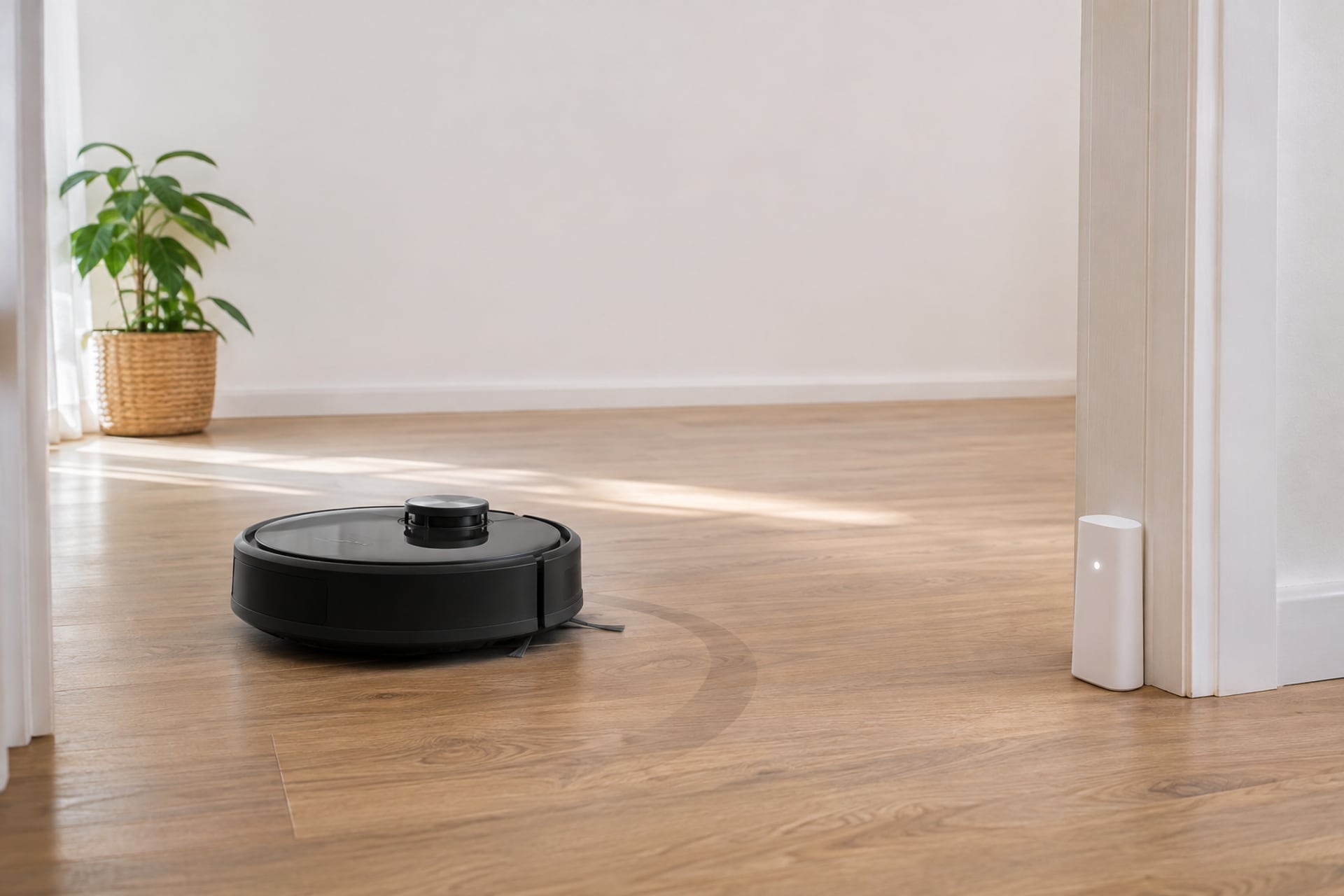
You want your Roomba to clean the living room and stay out of the nursery, or to leave the dog bowls alone. For years that job belonged to a small battery-powered beacon placed in a doorway. Newer Roombas do the same thing from a map in the phone app, and some of the newest robots cannot use the beacon at all. So the first question is not which barrier to buy, but which method your robot understands.
This page matches each Roomba series to the method iRobot says it supports, covers the Dual Mode Virtual Wall for the robots that still use it, and walks through setting up Keep Out Zones for the robots that do not. Every compatibility statement comes from an iRobot support article we read. If you are still working out which Roomba you own, our Roomba models explained guide sorts the numbered and letter series, and the barrier is one of the small parts on our robot vacuum parts page.
Virtual Wall or Keep-Out Zone?
The two methods solve the same problem in different ways. A Virtual Wall is a physical beacon that sends an infrared signal the robot refuses to cross. A Keep Out Zone is a rectangle you draw on the robot's saved map in the app, and the robot avoids it however you start a clean. The table shows which method each series can use, per iRobot. Where iRobot does not name a series for a method, the table says "not listed" and you should not assume it works.
Which Robots Use the Beacon
iRobot's Virtual Wall overview says the Dual Mode Virtual Wall works with the Roomba 500, 600, 700, 800, 900, e and s Series, with the i3 through i8 models and with the Combo i5. The older numbered robots have no map in an app, so the beacon is the only barrier they have.
Which Robots Use the App
iRobot's Imprint Smart Map guide says the Roomba i1 to i5 do not support Zones, and its compatibility table marks Zones for the i6, i7, i8, s9, m6, the j Series and the Combo 10 Max. That leaves the i3, i4 and i5 in a middle position: they can use the beacon but not the app zones.
Robots That Support Neither
iRobot lists the i1 and i2, the Combo i8, the Combo j5, j7 and j9 models and the Roomba Essential and Essential 2 as not compatible with the Dual Mode Virtual Wall. Of those, the j Series and Combo 10 Max use Keep Out Zones. For the i1, i2 and the Essential models, iRobot's pages do not describe a zone feature, so the simple fixes are a closed door or a physical barrier.
| Roomba series | Dual Mode Virtual Wall | Keep Out Zones in the app |
|---|---|---|
| 500, 600, 700, 800 and 900 | Compatible | Not listed |
| e Series | Compatible | Not listed |
| i1 and i2 | Not compatible | Not supported |
| i3, i4, i5 and Combo i5 | Compatible | Not supported for i3, i4 and i5 |
| i6, i7 and i8 | Compatible | Supported |
| s9 | Compatible (s Series) | Supported |
| j Series | Not compatible | Supported |
| Combo i8 and Combo j models | Not compatible | Not stated for the Combo i8; supported for the Combo 10 Max |
| Essential and Essential 2 | Not compatible | Not listed |
Dual Mode Virtual Wall
Show specifications
- 500, 600, 700, 800 and 900
- Compatible
- e Series
- Compatible
- i1 and i2
- Not compatible
- i3, i4, i5 and Combo i5
- Compatible
- i6, i7 and i8
- Compatible
- s9
- Compatible (s Series)
- j Series
- Not compatible
- Combo i8 and Combo j models
- Not compatible
- Essential and Essential 2
- Not compatible
Keep Out Zones in the app
Show specifications
- 500, 600, 700, 800 and 900
- Not listed
- e Series
- Not listed
- i1 and i2
- Not supported
- i3, i4, i5 and Combo i5
- Not supported for i3, i4 and i5
- i6, i7 and i8
- Supported
- s9
- Supported
- j Series
- Supported
- Combo i8 and Combo j models
- Not stated for the Combo i8; supported for the Combo 10 Max
- Essential and Essential 2
- Not listed
The Dual Mode Virtual Wall
The Dual Mode Virtual Wall is the beacon iRobot sells today. It is a small unit with a three-position switch: up for Virtual Wall mode, middle for off and down for Halo mode. Which mode you pick decides what shape of area the robot stays out of.
Virtual Wall Mode
In this mode the unit blocks an opening up to 10 feet (3 meters) wide, per iRobot. The barrier is cone-shaped and widens as it moves away from the unit. You place the unit in or beside the doorway, facing into the room you want to protect, and the robot treats the invisible beam as a wall.
Halo Mode
Halo mode makes a protective zone around the unit itself. iRobot suggests it for items such as a dog bowl or a vase, or to keep the robot out of corners and from under a desk. iRobot's article gives the size of the zone as "2 ft (6 m)", figures that do not match each other, so we do not quote a distance. Place it close to the object it guards and check where the robot stops.
Batteries and the Indicator
The unit takes 2 AA batteries, and iRobot says they can last up to 12 months in normal use. A light ring on top pulses five times when the unit switches on or changes mode, and it stays dark until the batteries need replacing, then it flashes. Between cleaning runs the unit can stay on the floor. For long storage, set the switch to the middle off position.

Top pick · Best for blocking two doorways
iRobot Dual Mode Virtual Wall (2-pack)
The simplest way to block two openings on a Roomba that works with the beacon, from the company that makes the robot.
- Budget
- Buy it if
- You own a 600 Series, e Series or an i3 to i8 Roomba and want to block two doorways, or one doorway and one pet bowl corner.
- Skip it if
- You own a j Series, Combo j, Combo i8, i1, i2 or Essential robot, which iRobot lists as not compatible, or you only need one barrier.
The listing calls this a 2-pack of Dual Mode Virtual Wall barriers from iRobot, with Virtual Wall mode to keep the robot in the rooms you want cleaned and Halo mode to keep it away from items such as pet bowls. Its title names the 600 Series, the e Series and the i-series models from the i1 to the i8+.
One caution: the listing title names the i1, while iRobot's own support article says the i1 and i1+ are not compatible with the Dual Mode Virtual Wall. We follow iRobot's article and treat the i1 as unsupported. The listing does not state whether batteries are included, so check the box contents on the page before you order.
What stands out
- Made by iRobot, with two units in the pack
- Two modes: doorway barrier and a zone around an object
- Listing names the 600, e and i Series
Trade-offs
- The listing title names the i1, which iRobot says is not compatible
- Battery inclusion not stated in the listing
- Not for the j Series, Combo j models or Essential robots
How to Set Up the Dual Mode Virtual Wall
Setup takes under a minute. These steps follow iRobot's published ones, with the placement tips from the same article.
Place It Where the Robot Will Meet It
Set the switch to the mode you want, wait for the ring to stop pulsing, then put the unit on the floor. For a doorway, iRobot says to put it outside the opening you want to block, with the arrow on top facing out.
Keep Other Infrared Sources Away
The robot's dock uses the same kind of infrared signal. iRobot says to remove nearby Home Bases, Lighthouses or other Virtual Walls, and to keep IR remotes away, because they can interfere. A barrier placed right next to the dock can confuse the robot more than it helps.
If the Robot Ignores It
Reinstall the batteries, using fresh ones if you can, and check that the ring pulses at power-on. If the robot cannot find its dock on its own, the problem may be the infrared signal and not the barrier, because both use the same signal. If it still ignores the barrier, iRobot says to contact Customer Care.
How to Set Up Keep Out Zones in the App
If your robot is an i6, i7, i8, s9 or j Series model, the zone lives on the Imprint Smart Map. iRobot says the robot may still be learning your home, and that it needs at least one complete mission before you can customize the map. The menu labels differ a little between iRobot support pages and app versions, so treat the steps below as the outline and follow what your own screen shows.
Add a Keep Out Zone to your Imprint Smart Map
-
Let the robot finish a mission
iRobot says the robot needs at least one complete mission before you can customize its map. Check the progress from the Map icon in the app.
-
Open the Imprint Smart Map
Open the app and tap into your saved map. Choose Zones.
-
Choose a Keep Out Zone
Pick the Keep Out Zone option. A colored box appears on the map.
-
Move and size the box
Drag the corners of the box to resize it and move it over the area to avoid. iRobot's advice is to cover the whole area, not just its entrance, and to make the zone a little larger than you think, since the robot may be off by an inch or two.
-
Save and check it
Save the map and start a run. iRobot says zones hold however you start a clean: from the app, a voice assistant or the CLEAN button on the robot.
Beacon and Zones Together
The two methods are not rivals. iRobot's overview says that since February 2020, Virtual Walls are no longer included with i7 Roombas sold in the US and Canada, because Keep Out Zones remove the need for them. It also says you can still use a Virtual Wall alongside zones, including during map creation to block off areas while the robot learns your home.
When the Beacon Still Wins
A beacon is a good fit when you own a robot with no map feature, when you want a barrier that works the moment you place it, or when a guest room door cannot be closed. It also helps an i3 to i5 owner, since those robots cannot use zones.
When Zones Win
A zone has no batteries to replace, cannot be knocked over by a pet and can be a precise rectangle around a bowl or a cable bundle. It is also the only choice for a j Series robot. If you are shopping for a new robot, the zone feature is one reason to look at a newer model, and our iRobot Roomba reviews cover the current lineup.
Older Virtual Walls
The Dual Mode unit replaced several earlier barriers, and a few of those are still around in homes and second-hand listings. Knowing which one you have saves you a wrong purchase.
The Auto Virtual Wall and Halo
iRobot describes an older Auto Virtual Wall that uses an infrared beam preset to 4 to 7 feet and takes 2 C batteries. In auto mode it stays active for up to six months and blinks twice, continuously, when the batteries run low. The older Virtual Wall Halo was made for pets: it does not work with metal bowls, or with bowls wider than 10 inches or taller than 3.5 inches, and it shuts off after 135 minutes.
The Lighthouse
The Virtual Wall Lighthouse talks to the robot by radio frequency, not infrared. iRobot lists only a short group of models as compatible, such as the 564, 580, 610, 780 and 880, and says most other 400, 500, 600, 700, 800 and 900 models are not. Check that list before you pair one.
The Single-Unit Dual Mode
If you only need one barrier, the single Dual Mode unit is the listing below. It names the 600, 700, 800 and 900 Series and the Scooba 400 Series, and it states a low battery indicator. It does not name the e, i, j or s Series, so owners of those robots should read iRobot's article before buying it. For other small wear items on your robot, see our Roomba replacement parts page.

Best for older numbered Roombas
iRobot Dual Mode Virtual Wall Barrier
A single iRobot barrier with both modes, named for the older numbered Roombas. Buy it when one barrier is enough.
- Budget
- Buy it if
- You own a 600, 700, 800 or 900 Series Roomba and need one barrier for a doorway or a pet bowl.
- Skip it if
- You own a j Series, Combo j, Combo i8, i1, i2 or Essential robot, or you own an e, i or s Series robot and want the listing to name it.
The listing describes a 1-pack Dual Mode Virtual Wall barrier with Virtual Wall mode and Halo mode, a low battery indicator and quick, easy set-up. It says the barrier is compatible with all Roomba 500, 600, 700, 800 and 900 Series robots and Scooba 400 Series robots, and the listing gives iRobot as brand and manufacturer.
Unlike the two-pack, this listing does not name any e, i or s Series model, even though iRobot's own article says those series work with the Dual Mode Virtual Wall. The listing does not state whether batteries are included.
What stands out
- Made by iRobot
- Compatibility for the 500 to 900 Series stated in the listing
- Low battery indicator
Trade-offs
- Does not name the e, i or s Series
- Battery inclusion not stated in the listing
- A single unit, so one barrier only
Roomba Virtual Wall FAQ
Product prices and availability are accurate as of the date/time indicated and are subject to change. Any price and availability information displayed on Amazon.com at the time of purchase will apply to the purchase of this product. Prices on this page are read again from Amazon once a reading is an hour old, and a price is hidden when the latest reading is more than 24 hours old. CERTAIN CONTENT THAT APPEARS ON THIS SITE COMES FROM AMAZON. THIS CONTENT IS PROVIDED 'AS IS' AND IS SUBJECT TO CHANGE OR REMOVAL AT ANY TIME.
Sources
- iRobot Customer Care, Virtual Wall Overview, homesupport.irobot.com, read on November 20, 2026 Source for the Dual Mode Virtual Wall compatibility and non-compatibility lists, the switch positions, the 10 foot barrier, the 2 AA batteries and 12 month figure, the setup and placement steps, the February 2020 i7 change and the legacy Auto, Halo and Lighthouse details.
- iRobot Customer Care, Guide to Imprint Smart Maps, homesupport.irobot.com, read on November 20, 2026 Source for the models that support Zones, the steps to add a Keep Out Zone, the placement tips and the rule that zones cannot be rotated.
- iRobot Customer Care, What are Keep-Out Zones?, homesupport.irobot.com, read on November 20, 2026 Source for how zones behave across app, voice and robot starts and for the stuck-robot suggestion.
- Amazon US product listing for the iRobot Dual Virtual Wall 2-Pack, read through the Amazon Creators API on November 20, 2026 Source for the pack size, the two modes and the models named in the listing title.
- Amazon US product listing for the iRobot Dual Mode Virtual Wall, single unit, read through the Amazon Creators API on November 20, 2026 Source for the compatibility statement, the two modes and the low battery indicator.